
Have you ever tried to upload a photo only to see an error message saying the format isn't supported? Incompatible image formats can stop you from sharing files, posting online, or printing documents. Whether you're running a small business, managing personal projects, or just need to send a quick file, knowing how to change image formats safely and efficiently saves time and frustration. This guide walks you through simple, privacy-focused methods to convert your images without technical headaches or security risks.
Table of Contents
- Key takeaways
- What you need before changing an image format
- Step-by-step guide to changing image formats
- Troubleshooting common problems when converting image formats
- Comparing popular image formats for different uses
- Get started with fast, free image conversions online
- FAQ
Key Takeaways
| Point | Details |
|---|---|
| Choose the right format | Select the output format based on use case to balance quality and compatibility. |
| Privacy focused tools | Online converters that process files locally in your browser help protect sensitive data. |
| Format tradeoffs explained | Understand lossy versus lossless formats to manage file size and quality. |
| Backup before converting | Make a copy of originals to test formats safely. |
| Batch processing saves time | Many tools let you convert multiple images at once. |
What you need before changing an image format
Before you start converting images, understanding what you're working with makes the process smoother and helps you avoid common mistakes. Knowing your source format and choosing the right output format ensures your converted image works exactly where you need it.
First, identify your current image format. Common formats include JPG (also written as JPEG), PNG, GIF, TIFF, BMP, WebP, AVIF, ICO, and SVG. Each serves different purposes and has unique characteristics. Check your file extension by looking at the end of the filename after the period.
Next, decide what format you need based on how you'll use the image. Are you posting to social media, printing a document, creating a website graphic, or archiving photos? Your destination determines the best format choice. For example, websites often prefer smaller file sizes for faster loading, while print projects need higher quality regardless of size.
Understand the quality versus file size trade-off. Lossy formats like JPG compress images by removing some data, creating smaller files but potentially reducing quality. Lossless formats like PNG preserve all original data, maintaining perfect quality but resulting in larger files. TIFF files are typically lossless and used for professional photography or printing. BMP files are uncompressed and very large. Newer formats like WebP and AVIF offer better compression with good quality.
Choose a reliable conversion tool. Online converters provide easy access without installing software and often emphasize data privacy. Look for platforms that process files locally in your browser rather than uploading them to remote servers. This approach protects sensitive business documents, personal photos, or confidential materials.
Gather your files and organize them if you're converting multiple images. Many converters support batch processing, letting you convert several files simultaneously. Check that your images are accessible on your device and note any specific requirements like target dimensions or quality settings.
Pro Tip: Before converting important images, make a backup copy of your original files. This safety net lets you try different formats or settings without losing your source material.
Consider these format characteristics when planning your conversion:
- JPG works best for photographs with many colors and gradients
- PNG excels for graphics with transparency or sharp edges like logos
- GIF supports simple animations and limited color palettes
- TIFF suits professional photography and print production
- WebP and AVIF provide modern compression for web use
- ICO creates favicon files for websites
- BMP offers uncompressed images for specific software compatibility
Here's a quick reference for common format features:
| Format | Compression | Transparency | Animation | Best Use |
|---|---|---|---|---|
| JPG | Lossy | No | No | Photos, web images |
| PNG | Lossless | Yes | No | Graphics, logos, screenshots |
| GIF | Lossless | Yes | Yes | Simple animations, icons |
| TIFF | Lossless/None | Yes | No | Print, archival, professional |
| WebP | Lossy/Lossless | Yes | Yes | Modern web graphics |
| AVIF | Lossy/Lossless | Yes | Yes | High-quality web images |
| BMP | None | No | No | Legacy software compatibility |
Step-by-step guide to changing image formats
Converting image formats becomes straightforward when you follow a clear process. This method works for most online conversion tools and takes just minutes to complete.
-
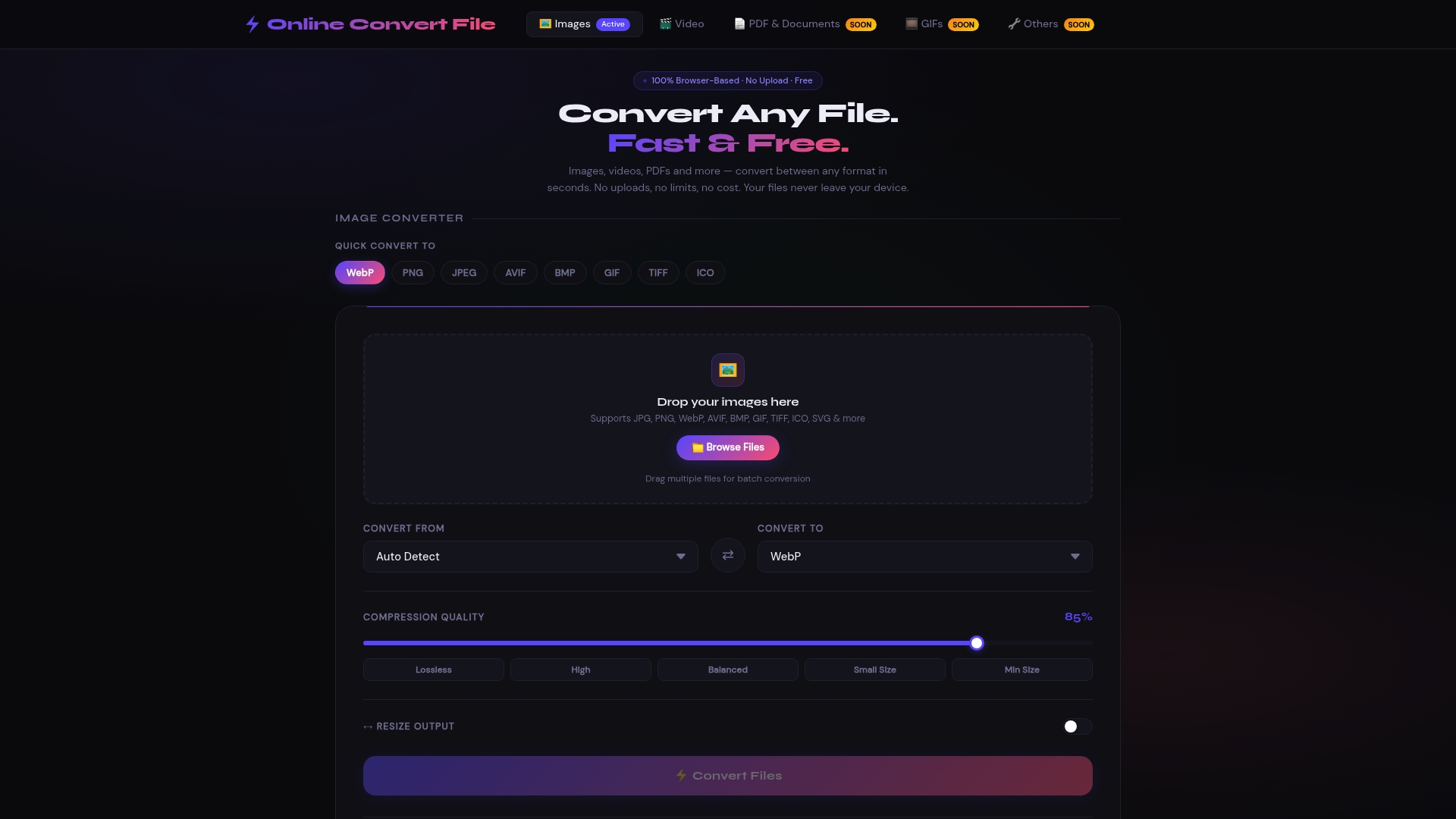
Open your browser and navigate to a conversion website. Look for platforms that specialize in image and video converter online services. Choose one that clearly states privacy protections and doesn't require account registration for basic conversions.
-
Select or upload your source image file. Most converters offer drag-and-drop functionality. Simply grab your file from your computer and drop it into the designated area. Alternatively, click the upload button and browse to your file location. Some tools let you paste images directly from your clipboard.
-
Choose your desired output format from the available options. You'll typically see a dropdown menu or button grid showing supported formats. For example, if you need to create modern web graphics, select formats like JPG to AVIF online converter for excellent compression and quality balance. For creating website favicons, use an ICO to JPG converter or reverse the process.
-
Review and adjust quality or size settings if available. Some converters let you fine-tune compression levels, image dimensions, or color depth. Higher quality settings produce larger files. For web use, moderate quality often provides the best balance. For print or archival purposes, choose maximum quality.
-
Initiate the conversion process. Click the convert button and wait for processing to complete. The website offers free, fast, and no upload-required conversions for many image formats, ensuring privacy. Client-side processing means your browser handles the conversion locally without sending files to external servers.
-
Download your converted file. Once conversion finishes, a download button or link appears. Click it to save the new file to your device. The converted image typically downloads to your default downloads folder unless you specify otherwise.
-
Verify the converted image. Open the new file to confirm it displays correctly and meets your needs. Check image quality, dimensions, and file size. Ensure the format works in your intended application or platform.
Pro Tip: When converting for web use, try the JPG to WEBP converter format first. WebP often provides 25-35% smaller file sizes than JPG with comparable visual quality, speeding up page loads significantly.
Before starting your conversion, consider these settings:
- Quality level: Higher percentages (90-100%) preserve more detail but create larger files; 70-85% often provides good balance for web use
- Dimensions: Resize images to match your display needs rather than converting at full resolution unnecessarily
- Color space: RGB for digital displays, CMYK for professional printing
- Metadata: Decide whether to preserve or strip EXIF data containing camera settings, location, and timestamps
Batch conversion saves time when working with multiple images. Upload several files at once, select the same output format for all, and process them simultaneously. This approach works well for converting photo albums, product catalogs, or document scans.

Troubleshooting common problems when converting image formats
Even with straightforward tools, you might encounter issues during image conversion. Recognizing these problems and knowing solutions keeps your workflow smooth.
File size exceeds upload limits. Some converters restrict maximum file sizes, typically ranging from 10MB to 100MB. If your image is too large, resize it before conversion using image editing software or online resizing tools. Alternatively, compress the source file first, then convert to your target format. Many modern converters process files locally without uploads, eliminating this constraint entirely.
Output quality appears degraded or shows artifacts. This usually happens when converting from lossless to lossy formats or using aggressive compression settings. Blocky patterns, color banding, or blurriness indicate too much compression. Increase quality settings during conversion, typically to 85% or higher for photographs. Avoid converting back and forth between formats repeatedly, as each lossy conversion degrades quality further.
Unsupported file format errors. Not all converters handle every format. Rare or proprietary formats may require specialized tools. Check that your source file isn't corrupted by opening it in image viewing software first. If the format is truly unsupported, convert to a common intermediate format like PNG first, then to your final desired format.
Transparency disappears after conversion. Converting PNG or GIF images with transparent backgrounds to JPG replaces transparency with a solid color, usually white or black. JPG doesn't support transparency. To preserve transparent areas, convert to PNG, WebP, or AVIF instead. If you must use JPG, consider adding a background color that matches your intended use.
Privacy concerns when using online converters. Many users worry about uploading sensitive images to unknown servers. Privacy concerns are key when uploading files to online converters; choosing converters that do not upload files to servers protects data. Look for platforms that explicitly state client-side processing or browser-based conversion. These tools perform all operations locally without transmitting your files over the internet.
"The best converter is one that never sees your files. Browser-based processing keeps your images on your device from start to finish, eliminating privacy risks entirely."
Verifying successful conversion requires checking several aspects:
- Open the converted file in multiple applications to ensure compatibility
- Compare file sizes to confirm appropriate compression
- Zoom in to inspect image quality and detail retention
- Test transparency if your format supports it
- Confirm the file extension matches your intended format
For specialized conversions like creating favicons, use dedicated tools such as the ICO to JPG converter which handles the unique requirements of icon formats including multiple embedded sizes.
Comparing popular image formats for different uses
Understanding format differences helps you choose the right conversion target for your specific needs. Each format evolved to solve particular problems, making some better suited for certain applications than others.
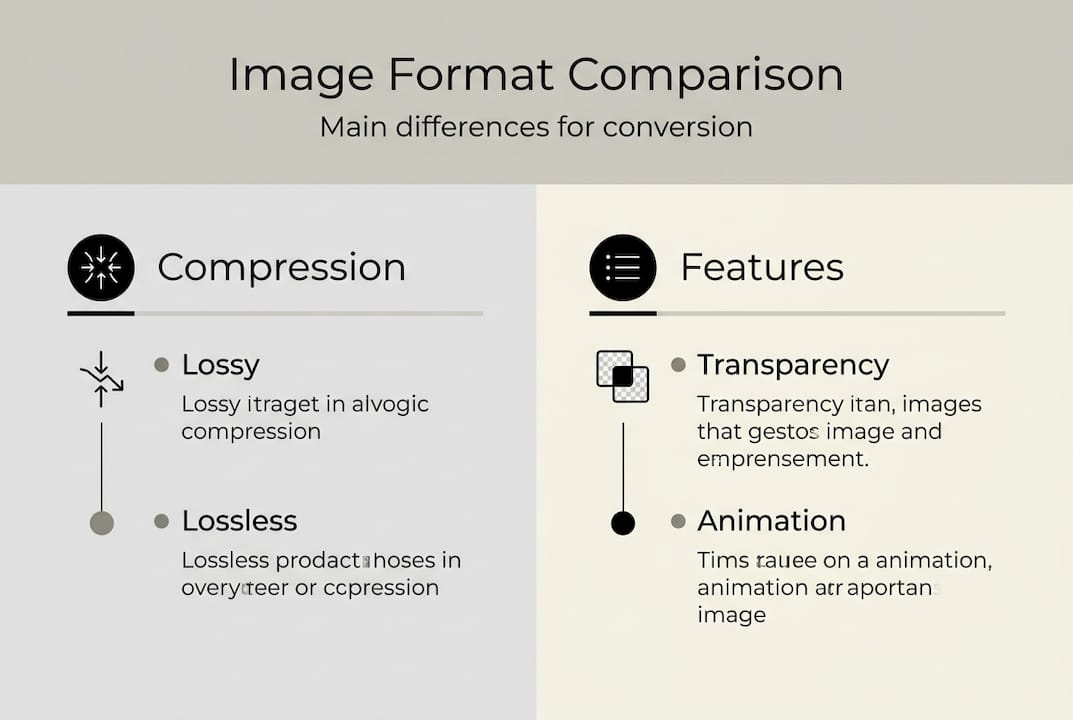
JPG (JPEG) remains the most widely used format for photographs. Its lossy compression achieves small file sizes by discarding data human eyes struggle to perceive. JPG works excellently for images with gradual color transitions, complex scenes, and photographs. However, it doesn't support transparency and degrades with repeated editing and saving. Best for sharing photos online, email attachments, and general web use.
PNG provides lossless compression, preserving every pixel of the original image. It supports transparency through alpha channels, making it ideal for logos, graphics, and images that overlay other content. PNG files are larger than equivalent JPG files but maintain perfect quality through multiple edits. Best for graphics design, screenshots, images requiring transparency, and when quality matters more than file size.
GIF supports simple animations and limited color palettes of 256 colors maximum. While outdated for photographs, GIF remains popular for short animated clips, simple graphics, and icons. Its lossless compression works well for images with flat colors and hard edges. Best for simple animations, reaction images, and basic graphics where file size matters.
TIFF serves professional photography, printing, and archival purposes. It supports both lossless and uncompressed modes, multiple layers, and extensive metadata. TIFF files are very large but preserve maximum quality and editing flexibility. Professional photographers and print shops prefer TIFF for its reliability and quality. Best for professional photography, print production, and long-term archival storage.
WebP combines the benefits of JPG and PNG into a modern format. It offers both lossy and lossless compression, supports transparency and animation, and typically produces 25-30% smaller files than JPG at comparable quality. Browser support is now widespread, making WebP increasingly popular for web development. Best for modern websites prioritizing performance and quality.
AVIF represents the newest advancement in image compression. It delivers exceptional quality at very small file sizes, outperforming WebP in most comparisons. AVIF supports wide color gamuts, high dynamic range, and transparency. Browser support continues expanding rapidly. Best for cutting-edge web projects and applications requiring maximum quality with minimum bandwidth.
BMP offers uncompressed or minimally compressed images with large file sizes. Its simplicity makes it compatible with older software but impractical for modern use. BMP supports no compression, making files enormous compared to alternatives. Best for legacy software compatibility and specific technical applications.
ICO creates multi-resolution icon files for websites and applications. A single ICO file can contain multiple image sizes, letting operating systems and browsers select the appropriate resolution. Best for website favicons and application icons.
Different formats serve different needs: JPG for photographs, PNG for transparency, GIF for animations. Here's a comparison of key format features:
| Format | File Size | Quality | Transparency | Animation | Browser Support | Best For |
|---|---|---|---|---|---|---|
| JPG | Small | Good | No | No | Universal | Photos, web |
| PNG | Medium-Large | Excellent | Yes | No | Universal | Graphics, logos |
| GIF | Small-Medium | Fair | Yes | Yes | Universal | Simple animations |
| TIFF | Very Large | Excellent | Yes | No | Limited | Print, archival |
| WebP | Very Small | Excellent | Yes | Yes | Modern browsers | Modern web |
| AVIF | Smallest | Excellent | Yes | Yes | Growing | Cutting-edge web |
| BMP | Huge | Excellent | No | No | Universal | Legacy software |
When selecting your target format, consider these factors:
- Intended use: Web, print, archival, or software compatibility
- Quality requirements: Professional work demands lossless formats
- File size constraints: Email and web use benefit from smaller files
- Transparency needs: Logos and overlays require PNG, WebP, or AVIF
- Animation requirements: GIF or WebP for moving images
- Audience technology: Older systems may not support modern formats
For web projects, converting to WebP or AVIF typically provides the best results. Use the JPG to GIF converter for creating simple animations or the JPG to TIFF converter when preparing images for professional printing.
Get started with fast, free image conversions online
Now that you understand image formats and conversion methods, putting this knowledge into practice takes just minutes. Whether you need to convert a single photo or process dozens of images, modern online tools make the task effortless while respecting your privacy.
The right converter eliminates technical barriers and security concerns. Platforms offering client-side processing keep your files on your device throughout the entire conversion process. No uploads, no server storage, no privacy risks. You maintain complete control over your images from start to finish.
Ready to convert your images? Visit our free image and video converter online platform to experience fast, private conversions in your browser. Try converting to modern formats like JPG to AVIF converter for exceptional web performance, or use specialized tools like the ICO to JPG converter for icon work. With support for JPG, PNG, WebP, AVIF, GIF, TIFF, ICO, BMP, and SVG formats, you'll find the right conversion for any project. Start converting now and see how simple format changes can be when privacy and ease come first.
FAQ
How do I convert PNG to JPG without losing quality?
Use a converter that allows you to adjust quality settings to 90% or higher before converting. Keep in mind that JPG is lossy, so some minimal quality reduction is inherent to the format. Avoid converting back and forth between formats multiple times, as each conversion degrades the image further.
Are online image converters safe for confidential photos?
Choose converters offering client-side or browser-based processing that never upload your files to external servers. These tools perform all conversions locally on your device, keeping sensitive images completely private. Always read the privacy policy before using any online service with confidential materials.
Can I convert image formats on my phone easily?
Yes, many online converters work perfectly on mobile browsers without requiring app installation. Look for mobile-responsive websites that support touch interactions and file selection from your phone's photo library. The conversion process works identically to desktop, giving you format flexibility anywhere.
What happens to image quality when converting between formats?
Converting from lossy to lossless formats (like JPG to PNG) preserves existing quality but cannot recover data already lost. Converting from lossless to lossy (like PNG to JPG) reduces quality based on compression settings. Converting between lossless formats maintains perfect quality throughout the process.
Which image format creates the smallest file size?
AVIF typically produces the smallest files while maintaining excellent quality, followed closely by WebP. Both modern formats significantly outperform traditional JPG compression. For maximum compatibility with older systems, JPG with moderate compression (70-85% quality) offers good file size reduction with universal support.